Apple Dictation Review 2026: Is the Free One Enough?
Apple Dictation is already on your Mac, costs nothing, and on Apple Silicon the recognition runs on the machine. That combination is why it sits at the top of most Mac dictation searches, and why a fair number of people who go looking for something better should stop looking.
We build Kana, which competes with it. So read the concessions below as the part you can check, and hold us to them.
Short answer: Apple Dictation is enough if you dictate in short bursts, in one language, without specialist vocabulary, and you are happy tidying up the text yourself. Three things push people away: it stops on its own after a silence, it has no custom vocabulary, and it does no formatting or rewriting of what you said.
What Apple Dictation does well
Turn it on in System Settings under Keyboard, pick a shortcut, and it works everywhere text goes. Nothing to install, nothing to sign into, no update to keep track of.
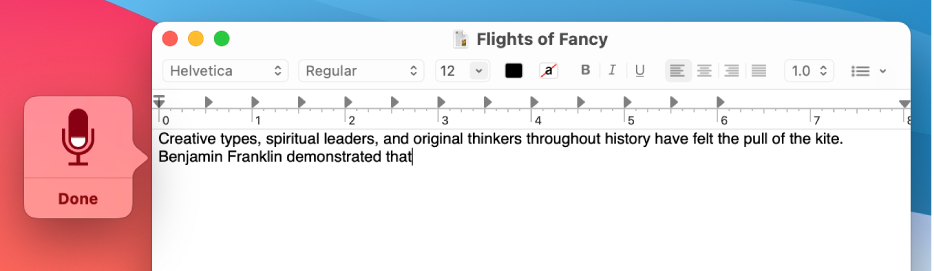
Source: Apple macOS User Guide (support.apple.com). This screenshot is from the macOS Big Sur edition of the Use Dictation article. The current macOS 26 edition of the same page carries no screenshots at all.
Punctuation is inserted for you in supported languages, and you can still say the name of a mark if you want to place one yourself. You can set up more than one language and switch between them. On Apple Silicon, Apple’s documentation notes that you can keep typing while you speak, so the keyboard is not locked out while dictation is running.
It is also wired into Voice Control, which is a full hands-free operation layer for the Mac rather than a text input feature. If you need to drive the machine by voice rather than just fill text fields, that is an accessibility story no third-party dictation app on this site can match, ours included.
And it runs on every Mac, Intel included.
The three limits
It stops after a silence. Apple’s own guide is explicit: dictation stops automatically when no speech is detected for 30 seconds. That is fine for a sentence into a search box. It is annoying when you are thinking mid-paragraph, and it is the single most common reason people go looking for something else.
No custom vocabulary. There is nowhere to teach it your colleague’s surname, your product name, your industry’s acronyms. It will keep getting them wrong in the same way, and you will keep fixing them by hand.
No formatting or rewriting. What you say is what you get, filler words included. If you speak the way people actually speak, with restarts and asides, the transcript reads like it. Every AI dictation app that has launched in the last two years exists in the gap between what people say and what they want written down.
None of these are bugs. Apple built a system input method, and a system input method that quietly rewrote your words with a language model would be a strange default.
Privacy is not the reason to leave
This is worth being plain about, because a lot of comparison pages shade it.
On Apple Silicon, Apple Dictation runs the recognition on your Mac. Your voice is not being shipped to a server for a Slack message. Anyone telling you to switch away from the built-in dictation for privacy reasons is selling you something.
If privacy is your requirement, the built-in one already satisfies it, and the question becomes whether you want the features it is missing. That is a features conversation, and it should be argued as one.
| Apple Dictation | Kana | |
|---|---|---|
| Cost | Free | $9.99 once, 14-day trial |
| Runs on the Mac | Yes, on Apple Silicon | Yes |
| Stops after a silence | Yes, after 30 seconds | No, you hold a key |
| Custom vocabulary | No | Yes |
| AI rewriting of what you said | No | Yes, paid tier |
| Per-app behaviour | No | Yes |
| Transcribe an audio or video file | No | Yes |
| Subtitle export (SRT, VTT) | No | Yes |
| Intel Macs | Yes | No |
| Hands-free control of the Mac | Yes, via Voice Control | No |
| Languages | Many, set in System Settings | 22 |
What Apple Dictation does better than Kana
It is free, installed and supported by Apple. No download, no developer to outlive, no signing certificate to worry about. It will be there in five years.
It works on every Mac. Kana is Apple Silicon only. There is no Intel build and there will not be one. If you are on a 2019 MacBook Pro, this comparison ends here and the built-in one wins.
Voice Control. Clicking, scrolling, switching apps, moving around a window by voice alone. Kana does not do any of that and is not going to. For anyone who dictates because typing is painful rather than slow, this is the more important half of the product.
It is in the OS. Login screens, system dialogs, places a third-party app cannot reach. Kana is a menu bar app, so there are corners of the system it does not go.
It costs nothing to try and nothing to keep. Kana is $9.99 after a 14-day trial, but Apple’s is already running.
Where Kana differs
Kana is push-to-talk. Hold the key for as long as you are talking, release, and the text lands. No session ends itself while you are thinking, because there is no session, only the key you are holding.
Custom vocabulary exists, so names the model keeps mangling can be registered once. Per-app routing exists as well, so a Slack message and a client email do not have to come out sounding the same, and there is a blocklist of apps where rewriting never runs.
Transcription runs on device: English and 17 other European languages on Parakeet on the Neural Engine, Japanese on a Parakeet model of its own, Chinese and Korean on Apple’s SpeechAnalyzer, 22 in total. Dictation makes zero network calls, which is checked in CI rather than promised in copy. File transcription is unlimited, with SRT, VTT and Markdown export, which macOS does not offer at all.
Kana is $9.99 once, and AI rewriting is the one subscription: $4.90 a month or $49 a year, covering three Macs, with the detail on the pricing page. When rewriting fails, the raw transcript is inserted anyway, so a bad network never costs you the words.
The app is 6.5 MB, one executable, nothing in the Dock, no login item and no account. The speech model is a separate download of about 480 MB, so the install is larger than the bundle.
For the two side by side on the rows that matter, including the ones Apple wins, there is the Kana and Apple Dictation comparison.
Who should keep using Apple Dictation
- You are on an Intel Mac
- You dictate in short bursts: search boxes, replies, quick notes
- Your vocabulary is ordinary and the built-in accuracy is fine on it
- You want or need Voice Control for hands-free operation
- You would rather have one fewer app running
- You are happy editing the transcript yourself
Who should use Kana instead
- You dictate paragraphs and the 30 second cut-off keeps interrupting you
- The same names and acronyms come out wrong every single time
- You want the filler words and false starts cleaned up before the text lands
- You want different output styles in different apps
- You transcribe recordings and need SRT or VTT files
- You are on Apple Silicon, which is the only place Kana runs
FAQ
Is Apple Dictation good enough in 2026?
For short, ordinary text on a Mac, yes. It is free, on device on Apple Silicon, and supported by Apple. The reasons to leave are the 30 second silence cut-off, no custom vocabulary, and no cleanup of what you said.
Why does Mac dictation stop after 30 seconds?
Because it is designed to. Apple’s guide says dictation stops automatically when no speech is detected for 30 seconds. Push-to-talk apps avoid this by tying the session to a key you are holding rather than to whether you are currently making noise.
Does Apple Dictation work offline?
On Apple Silicon the recognition runs on your Mac. Downloading a language the first time needs a connection, and Apple sets Dictation languages up in System Settings under Keyboard.
Can I add custom words to Apple Dictation?
No. There is no custom vocabulary list for Dictation. Third-party dictation apps, including Kana, add one because it is the fix for names and technical terms that a general model gets wrong every time.